Importing products to your store is quite easy.
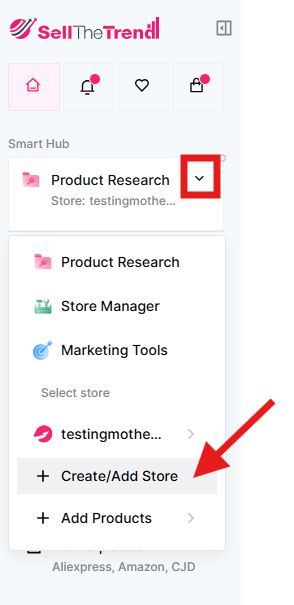
First, you need to connect a store with your Sell The Trend account. Click the store dropdown and then click on Create/Add Store button.
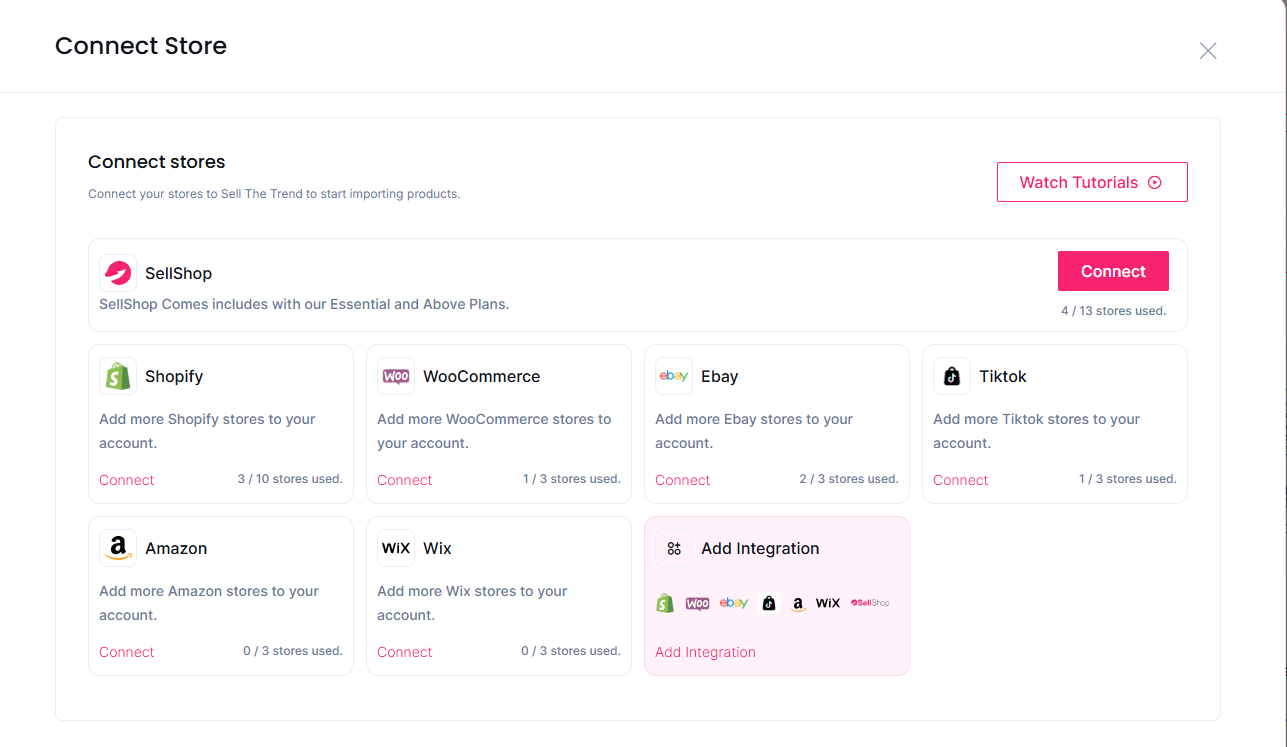
Now choose any of the listed platforms ( Shopify, Woocommerce, Ebay, TikTok Shop, Amazon , Wix and SellShop ) to connect on Sell The Trend and add products to your store.
After connecting your store to Sell The Trend. You can import products to your store in two ways. We will discuss both ways in detail.
1. Sell The Trend NEXUS AI Products
Go to Sell The Trend Dashboard and click on NEXUS AI products from the left menu and select any of the categories listed on the menu. Choose a product you like and click on the Product Research button.
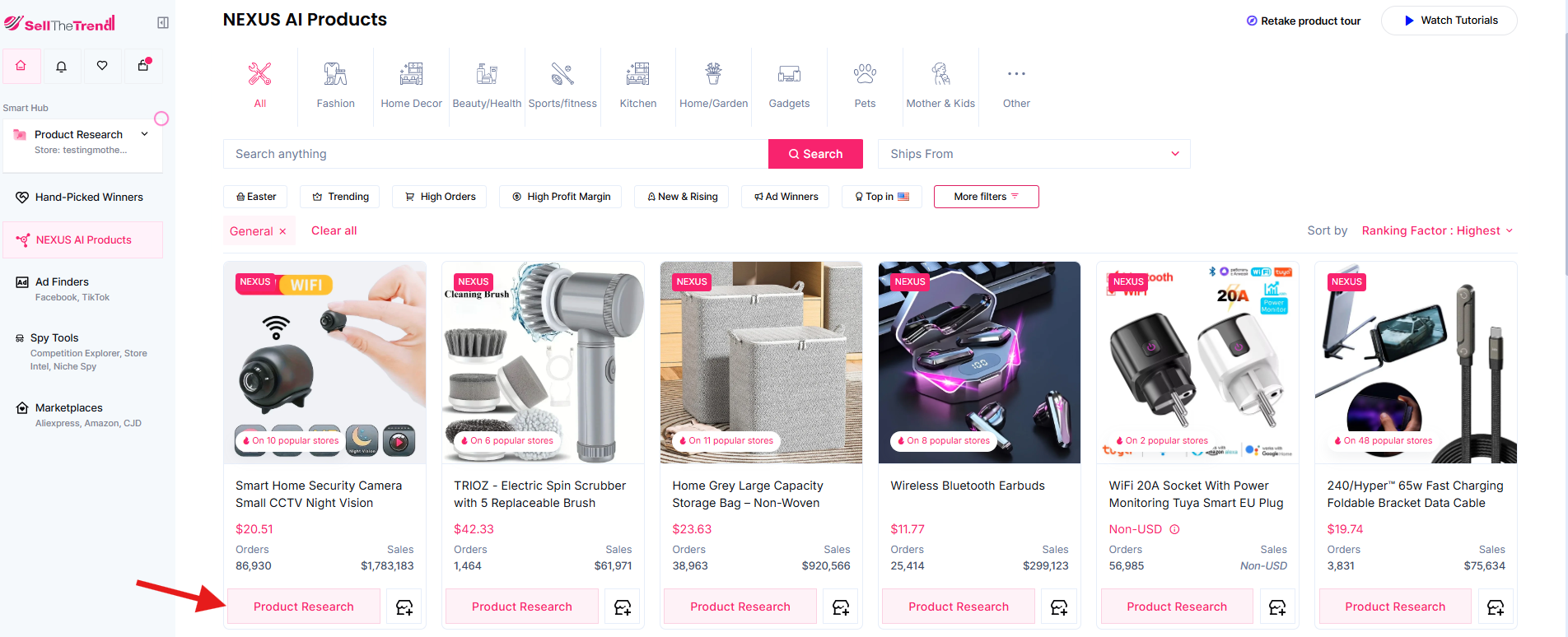
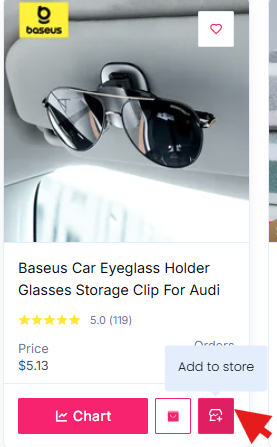
Now you can view product stats such as product cost, orders, and total sales. After reviewing the product stats, click on Add to store button to go to the product details page.

Some Explorers do not have a Product Research tab. You can click the + icon on the product card.
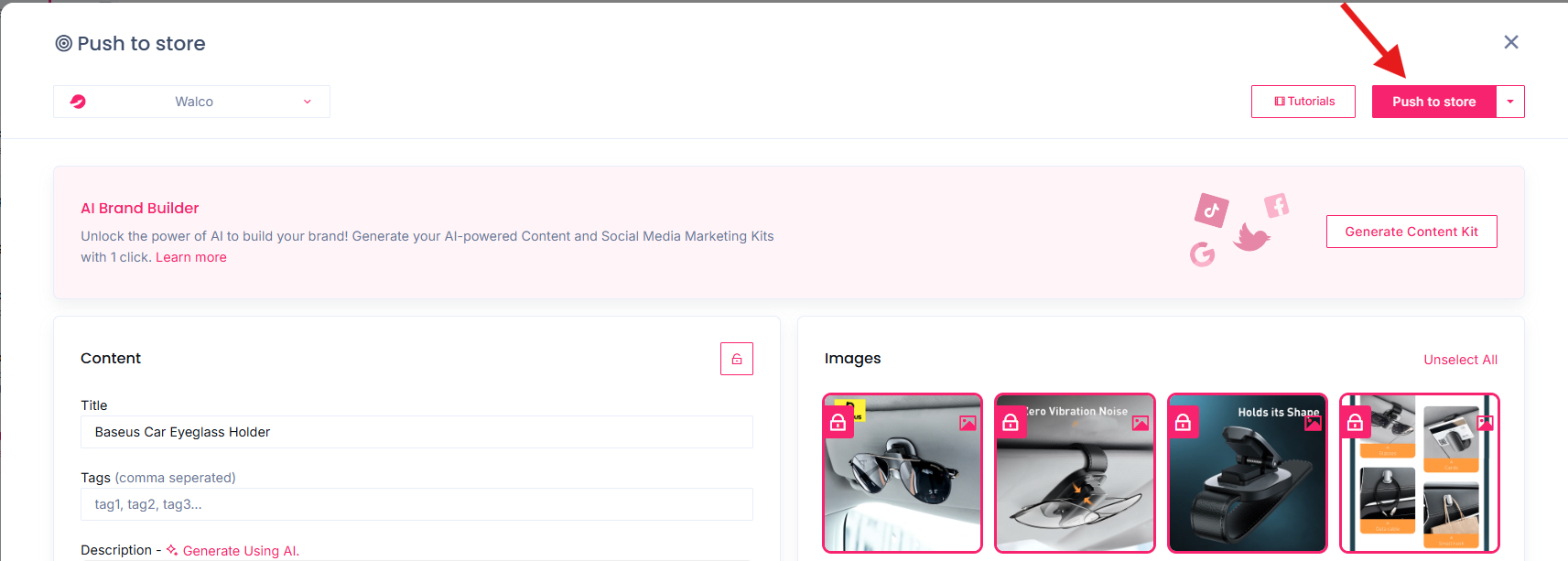
 Once you open the Push To Store Page, you can then change the product title, images, price, and descriptions. Then click on the Push to Store button to import the product into your store successfully.
2. Chrome Extension
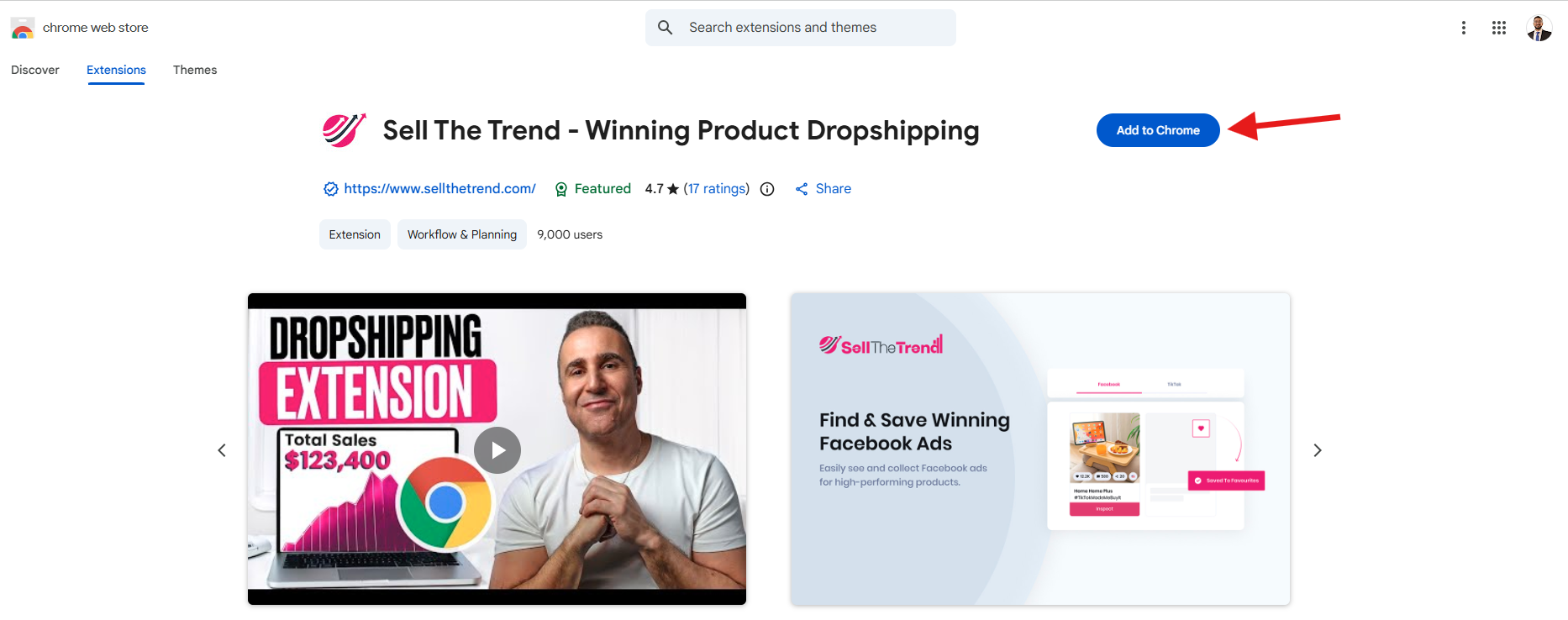
Go to Chrome Web Store and type Sell The Trend.
Then click on Add to chrome button to successfully enable the extension in Google Chrome.
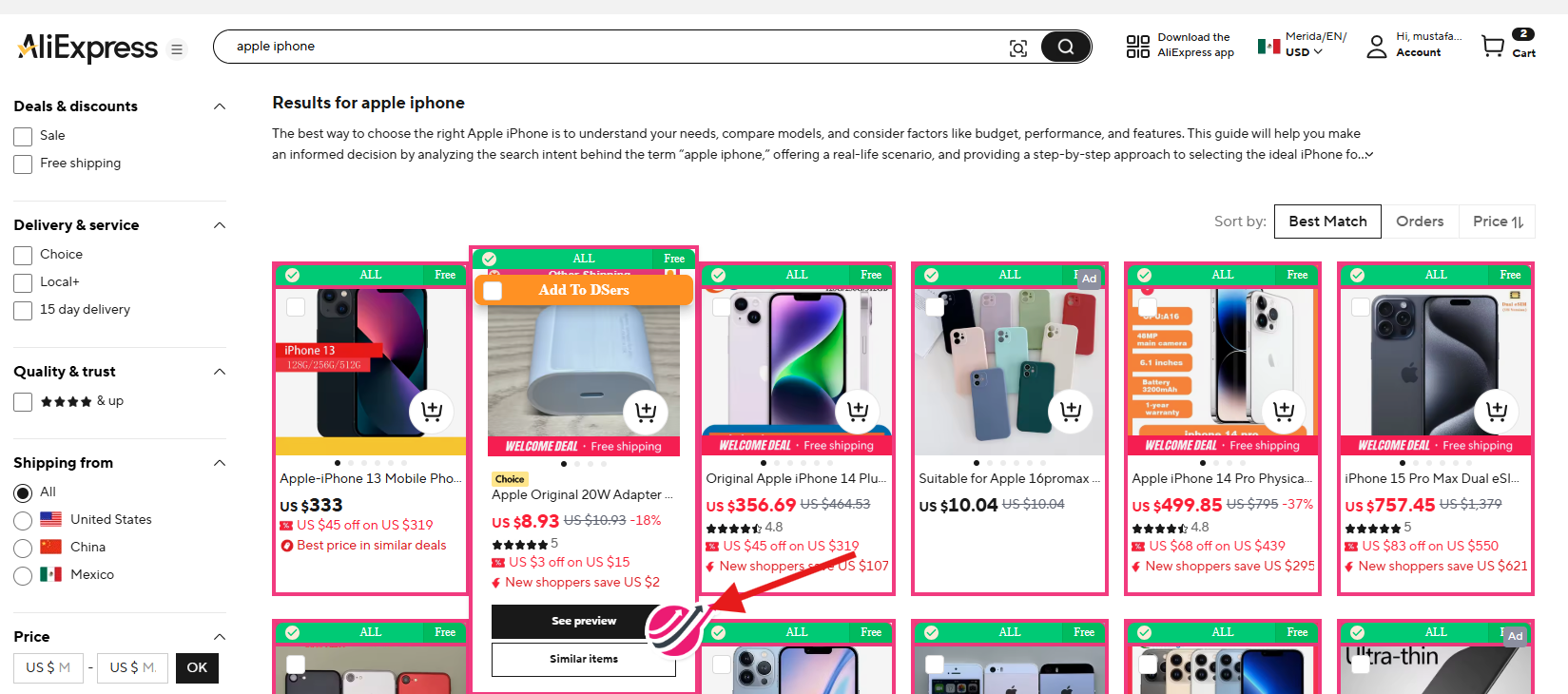
Login into your AliExpress account which is connected with Sell The Trend and type in a product name that you would like to import to your store. Now hover over the product you like and click on the Sell The Trend logo.
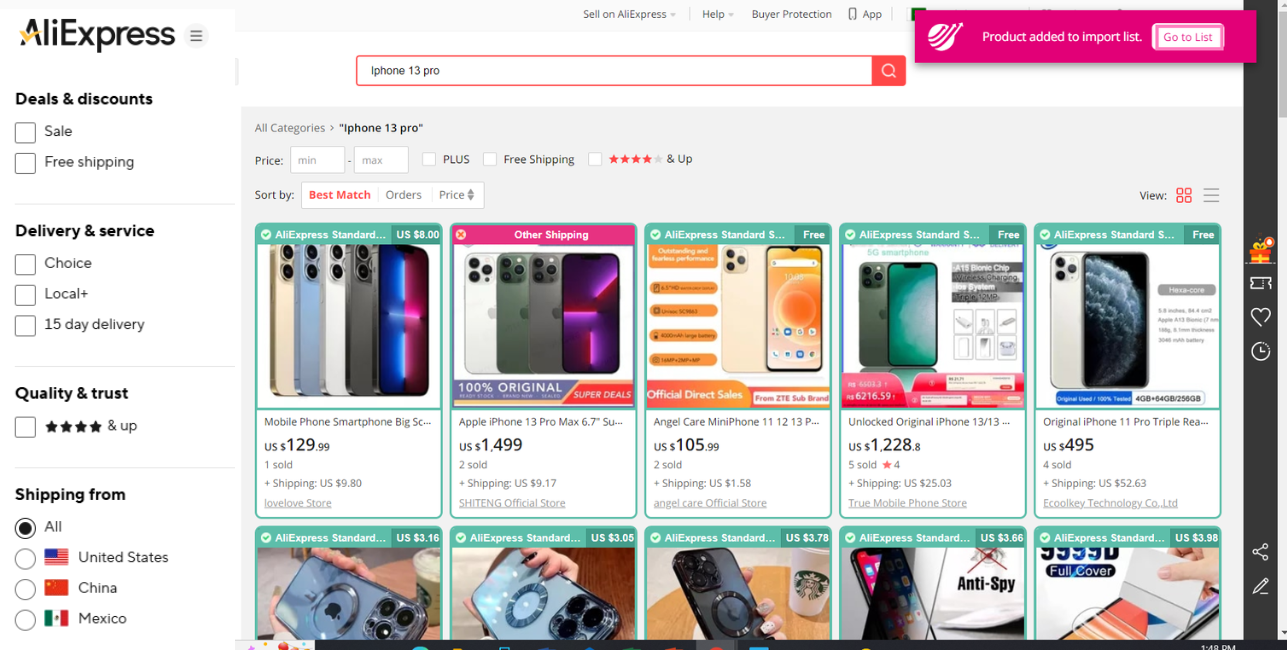
Then you can see a pink bar at the top right side. Just click on Go to List button to successfully see the imported products.
You can also import products from CJDropshipping. Login into your CJDropshipping account, which is connected with Sell The Trend, and type in a product name that you would like to import to your store. Then click on the product title and go to its product page.
Then you can see a blue bar at the bottom. Just click on Add Product to successfully see the imported products on Sell The Trend. 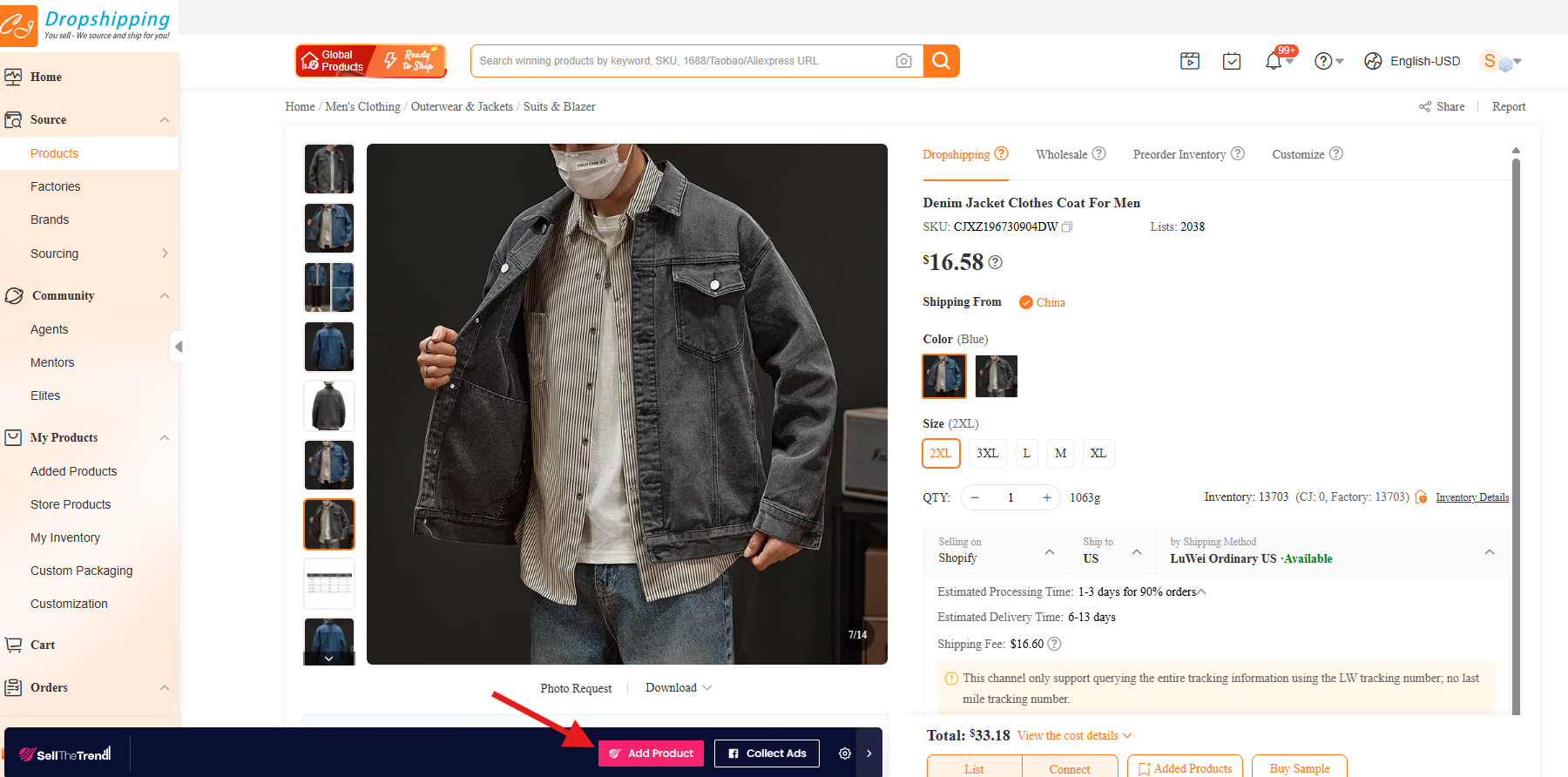

3. Add Top 10 Niche Winning Products (1-Click)
You can instantly add 10 proven products to your store in just a few clicks.
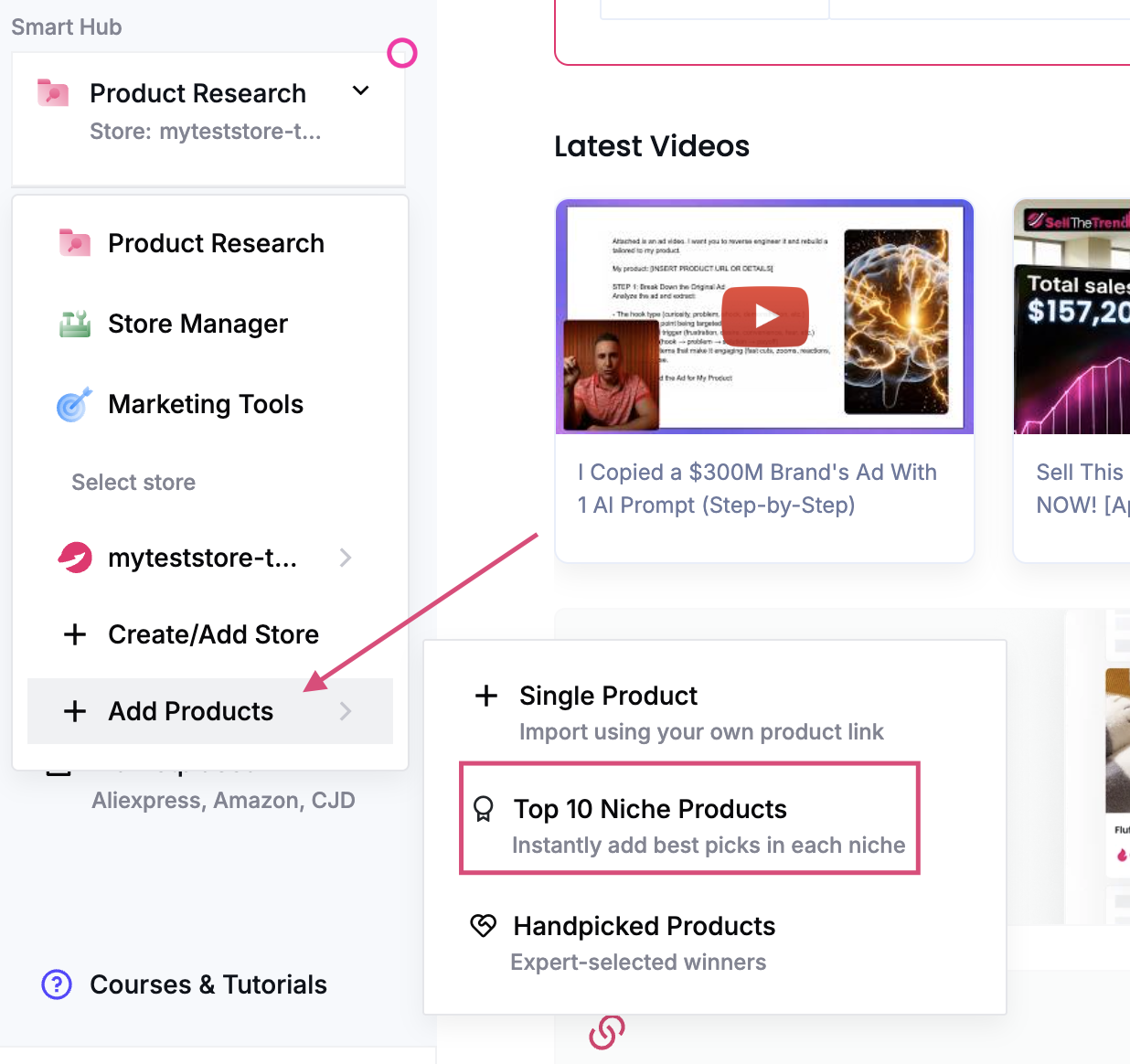
Step 1: Go to Add Products
Click Add Products from the left menu
Select Top 10 Niche Products
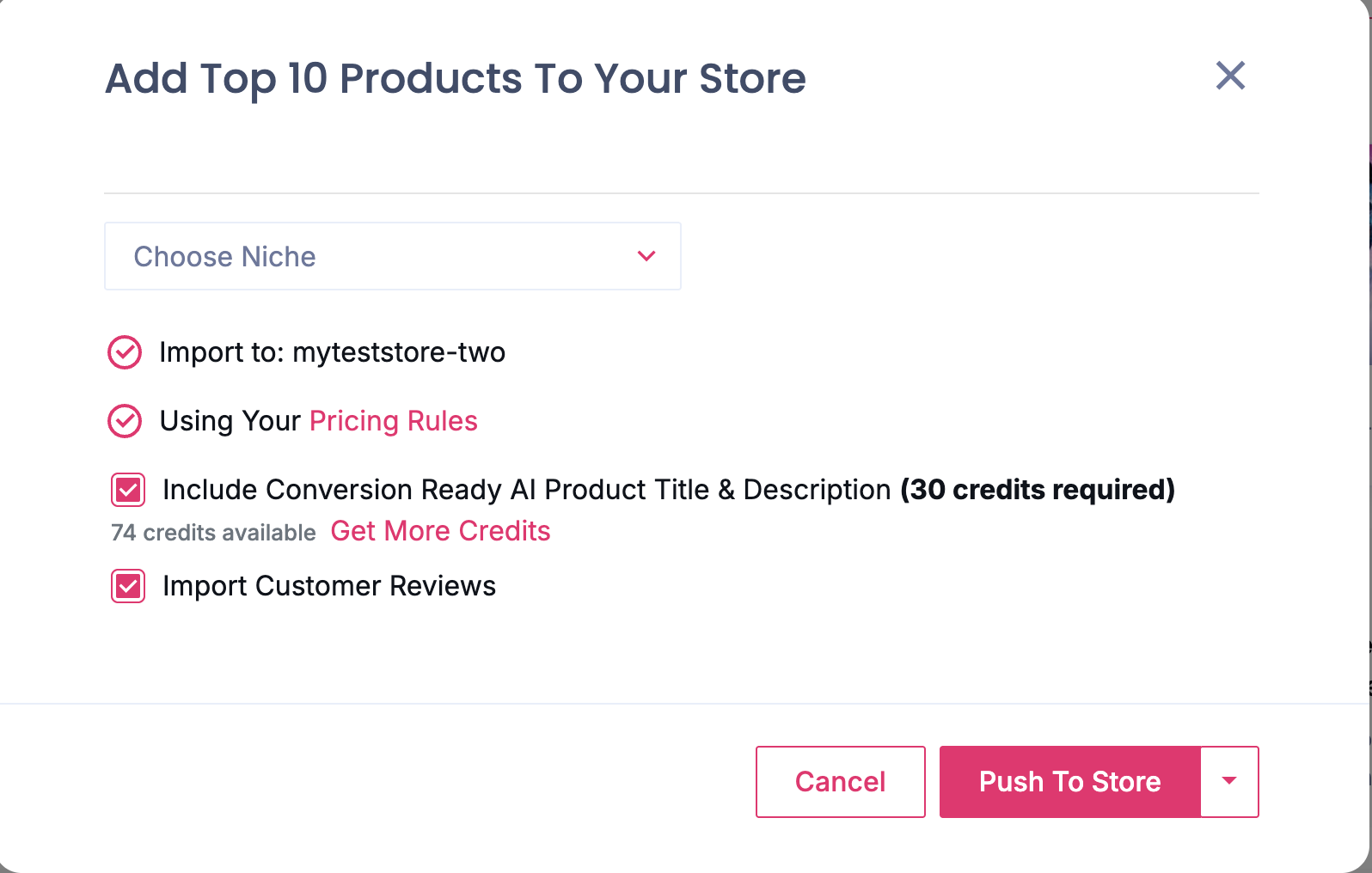
Step 2: Choose Your Niche & Import
Select your desired niche
Confirm your store
(Optional) Enable AI titles/descriptions and reviews
Click Push To Store
4. Importing Products Directly from AliExpress Using a Product URL
you can import it directly using the Import by URL feature. T
Step 1: Copy the AliExpress Product URL
Navigate to the product page on AliExpress and copy the full product URL from your browser.
Example:
https://www.aliexpress.com/item/xxxxxxxxxxxx.html
Step 2: Open the Import by URL Tool
Inside Sell The Trend, Go to the My import list page
locate the Import Product URL input field.

Paste the AliExpress product URL into the input box.
Step 3: Select the Correct Destination Country
Before importing the product, choose the country where you intend to sell and fulfill orders.
Why is this important?
Suppliers (such as AliExpress) may offer different:
- Prices
- Stock availability
- Shipping options
- Delivery times
for the exact same product depending on the destination country.
By selecting the correct country, Sell The Trend can retrieve the most accurate supplier information for your target market.
Step 4: Import the Product
Click the import button and allow Sell The Trend to retrieve the product information and add to your Import List
Push the Product to Your Store
After importing and reviewing the product, push it to your connected store.
The product will then be linked to Sell The Trend’s fulfillment system, allowing you to process future orders through the platform.
That’s it—your store will be populated with conversion-ready winning products instantly
Was this article helpful?
That’s Great!
Thank you for your feedback
Sorry! We couldn't be helpful
Thank you for your feedback
Feedback sent
We appreciate your effort and will try to fix the article